
User Guide
Everything you need to know to get the most out of Kodimu.
Projects
Projects are the core of Kodimu. Each project represents a goal, client job, or area of your life — like "E-commerce Redesign", "Japan Trip 2026", or "Rust Programming".
Creating a Project
Click + New project on the Projects page to open the creation dialog.
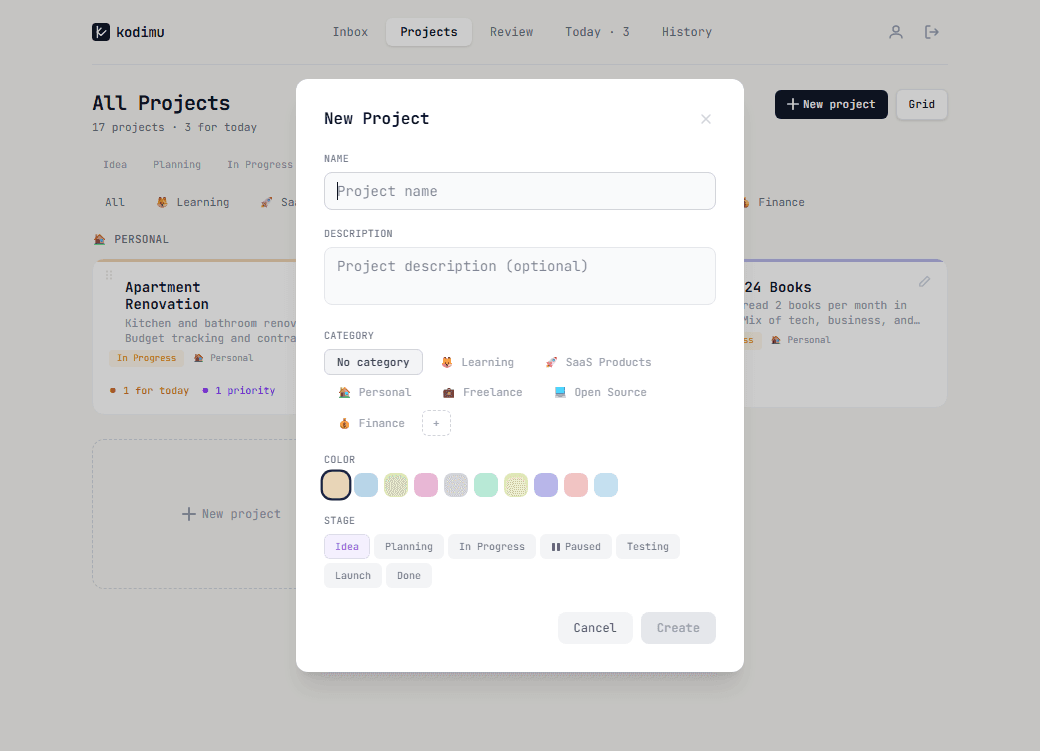
Every project has:
- Name — the project title
- Description — optional context for what the project is about
- Category — group projects by area (Freelance, Personal, Learning, etc.)
- Color — pick a color to visually distinguish the project
- Stage — set the current status: Idea, Planning, In Progress, Paused, Testing, Launch, or Done
Project Detail
Open any project to see its tasks. Tasks can have subtasks (nested checkboxes) for breaking work into smaller pieces.
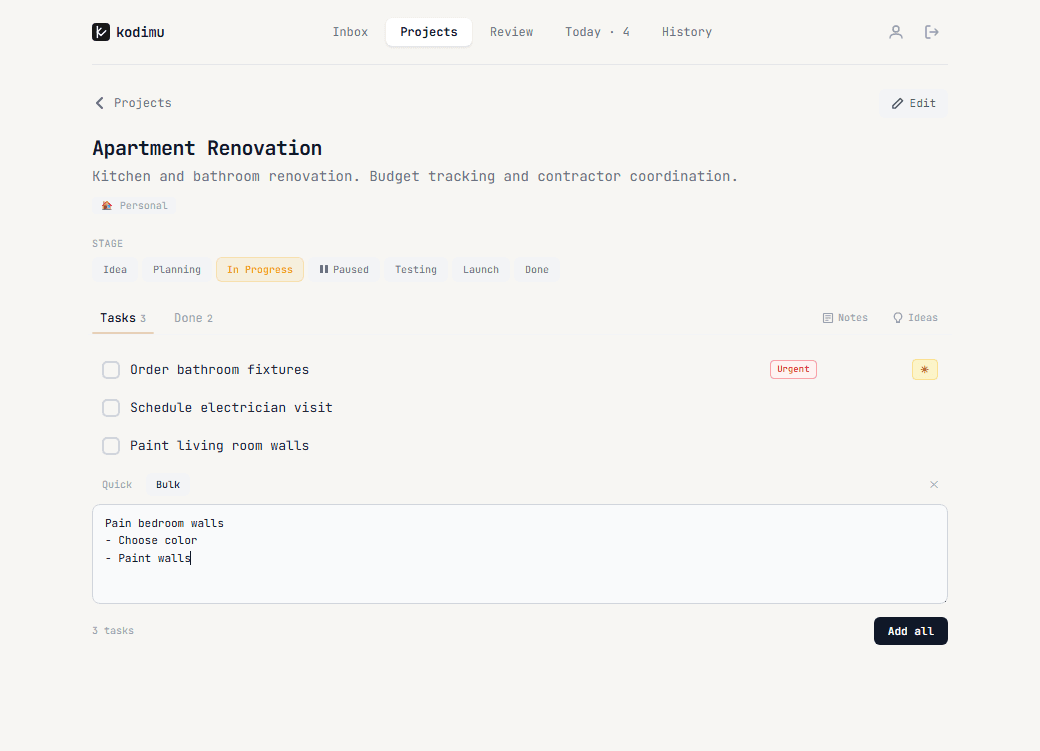
Each project page shows:
- Current stage with all stages visible for quick switching
- Tasks tab with active tasks and a Done tab for completed ones
- Notes and Ideas buttons for project-level documentation
- Task priority badges (Urgent, Important) and a star marker for today's tasks
- An Edit button to change project details
Notes & Ideas
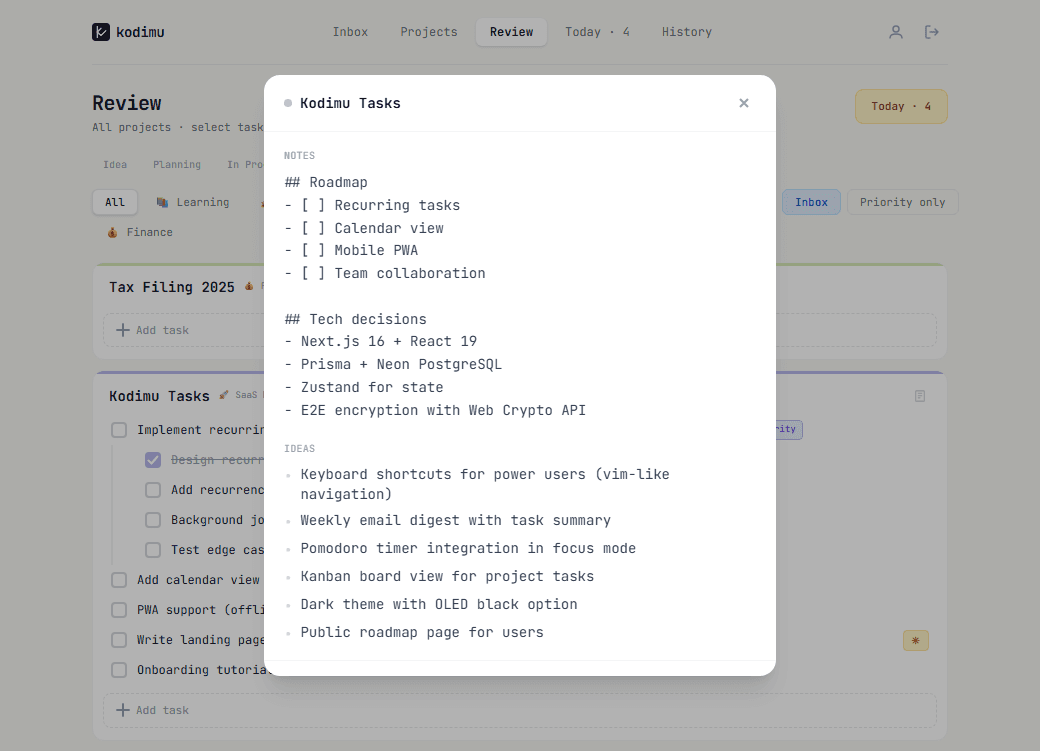
Every project has a built-in notes section and an ideas board — perfect for keeping roadmaps, technical decisions, and brainstorming in one place.
Notes support Markdown and can hold anything: meeting notes, architecture decisions, links, or checklists.
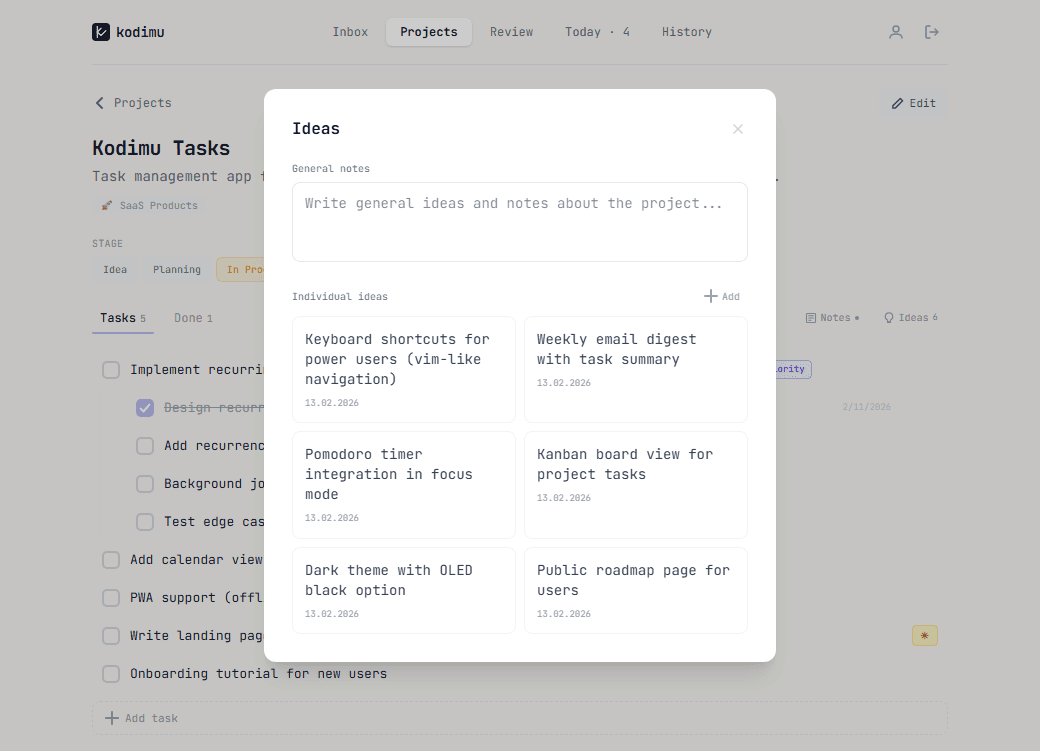
Ideas are individual cards, each with a creation date. Use them to capture feature ideas, improvements, or things to explore later.
Adding Tasks
Kodimu offers two ways to add tasks to any project.
Quick Add
The default mode. Type a task name and press Enter. Simple and fast — one task at a time.
Bulk Add
Switch to the Bulk tab to add multiple tasks at once. Write one task per line. Lines starting with a dash (-) become subtasks of the task above them.
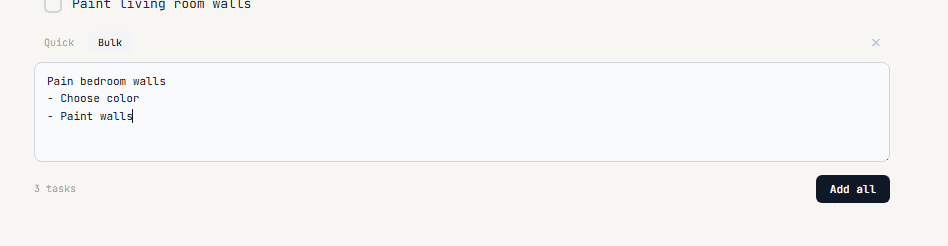
For example, typing:
Paint bedroom walls
- Choose color
- Paint walls
...creates one parent task with two subtasks:

Click Add all to create everything at once.
Inbox
The Inbox is your quick capture zone. When a thought or task comes to mind, dump it here — no need to decide which project it belongs to right away.
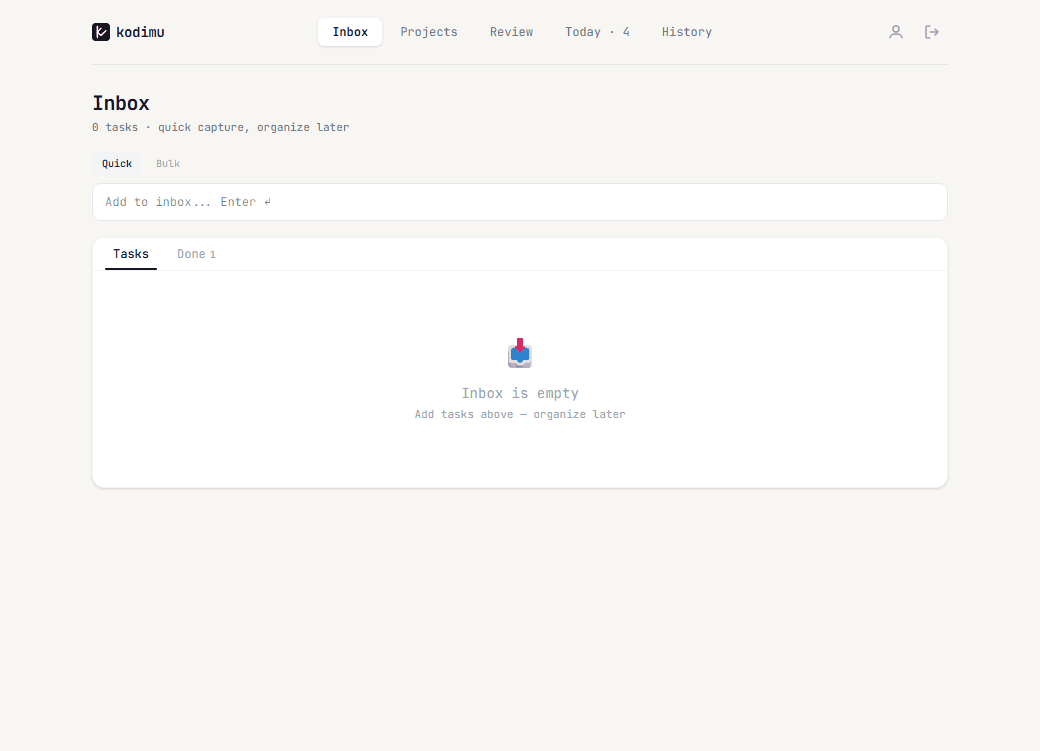
- Type in the input field and press Enter to add
- Both Quick and Bulk modes are available
- Later, organize inbox tasks into the right projects
The Inbox follows the GTD (Getting Things Done) principle: capture first, organize later.
Review
The Review page is where you plan your day. It shows tasks from all projects in one place, and lets you pick which ones to work on today.
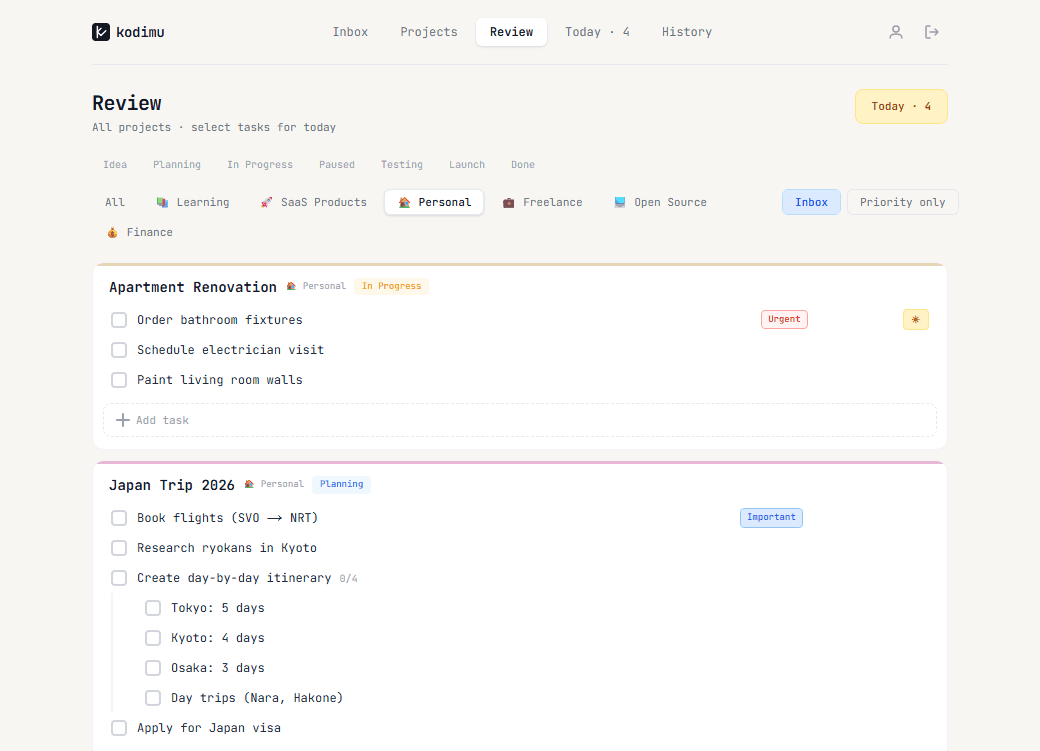
Filters available:
- By stage — Idea, Planning, In Progress, Paused, Testing, Launch, Done
- By category — Learning, SaaS Products, Personal, Freelance, Open Source, Finance
- Inbox — show only inbox tasks
- Priority only — show only tasks marked as Urgent or Important
Select a task's checkbox to add it to your Today list. The Today counter in the top-right corner updates in real time.
Today
The Today page is your daily dashboard — everything you planned to work on, in one focused view.
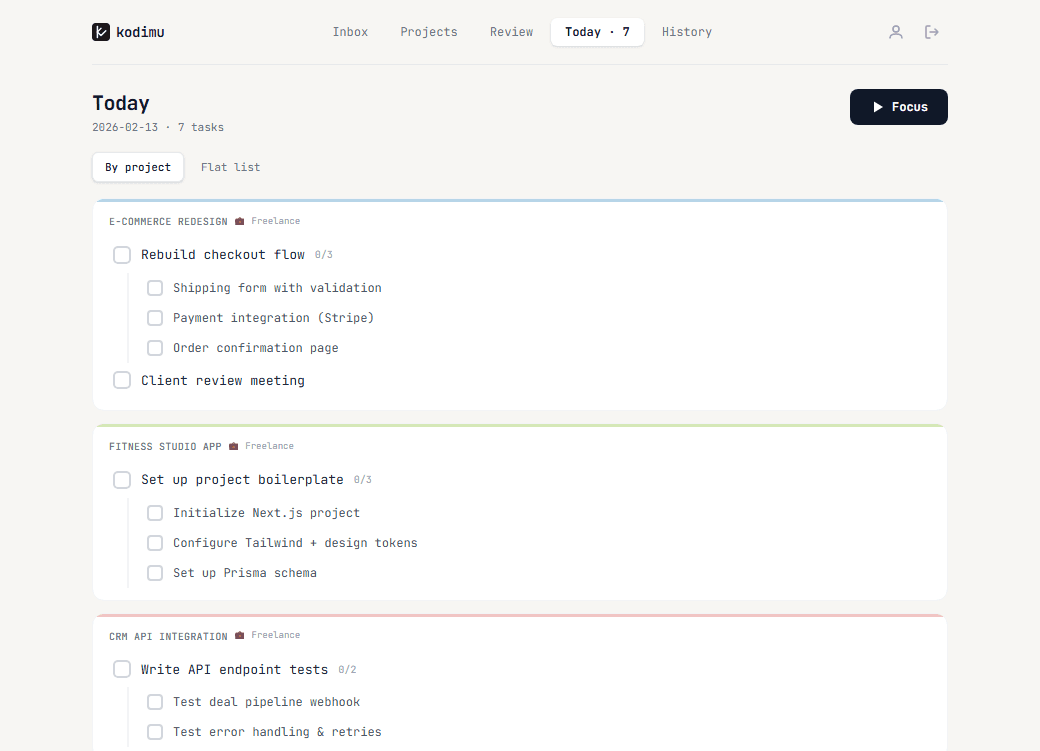
Two view modes:
- By project — tasks grouped under their project names (default)
- Flat list — all tasks in a single list
Each task shows its subtasks inline. Check them off as you go. Hit the Focus button in the top-right corner to start a focus session.
Scroll down to see completed tasks (struck through) and your daily stats.
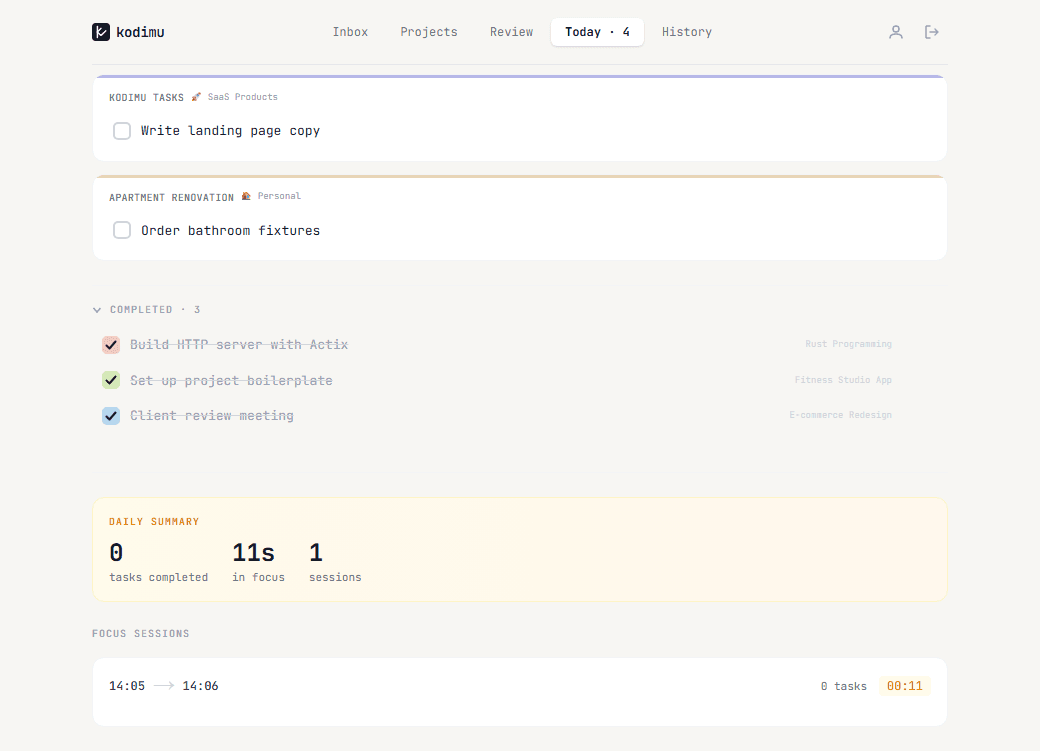
The Daily Summary card shows:
- Tasks completed today
- Total time spent in focus
- Number of focus sessions
Below it, the Focus Sessions section lists each session with start/end times, task count, and duration.
Focus Mode
Focus Mode is Kodimu's built-in work timer. It presents one task at a time so you can concentrate without distraction.
Starting a Session
From the Today page, click Focus to start. The timer begins counting up, and your first task appears.
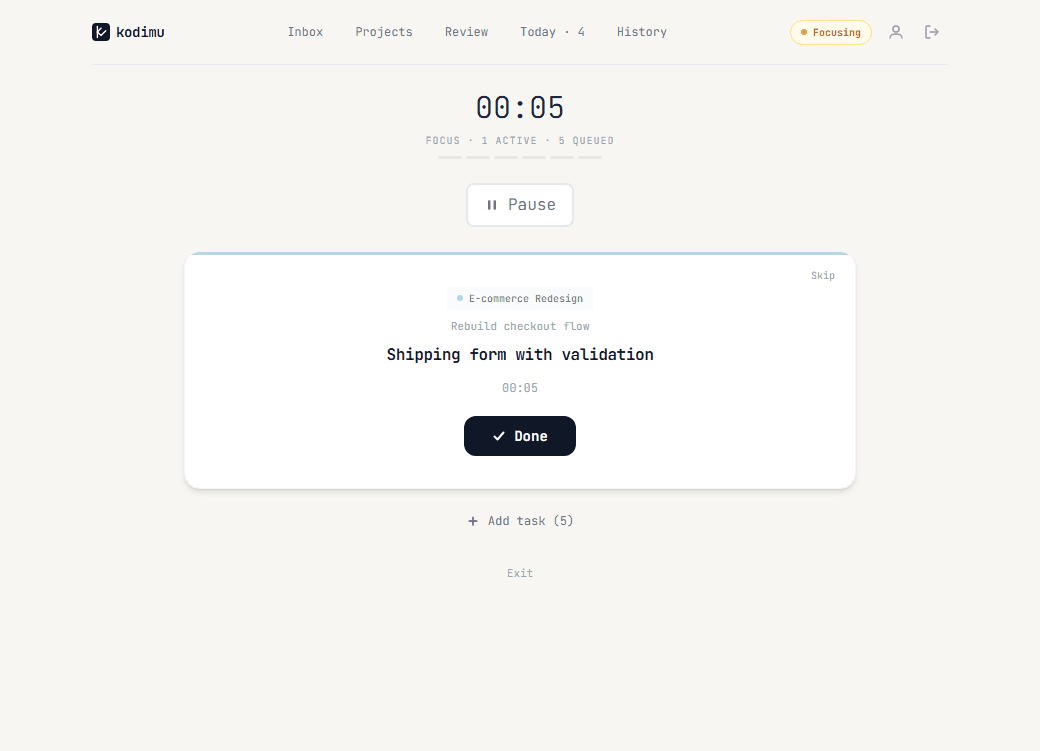
The focus screen shows:
- A large timer at the top
- Status line: how many tasks are active and queued
- A progress bar segmented by task
- The current task with its project name and parent task for context
- Done — mark the task complete and move to the next one
- Skip — skip this task and move to the next
- Pause — pause the timer
- + Add task — pull in more tasks during the session
- Exit — leave focus mode
Pausing
Hit Pause to take a break. You can optionally type a reason (like "coffee" or "meeting").
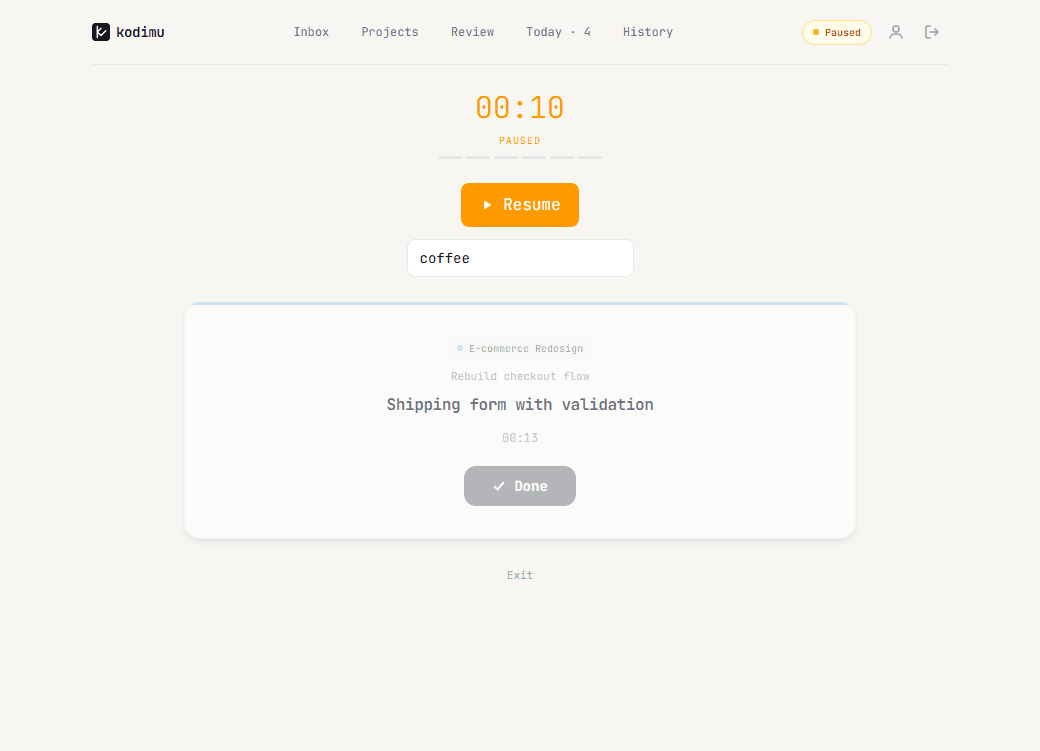
The timer turns orange and shows PAUSED. Click Resume to continue. Pause time is tracked separately from focus time.
Adding Tasks During Focus
Need to work on something else? Click + Add task to see all available tasks from your Today list.
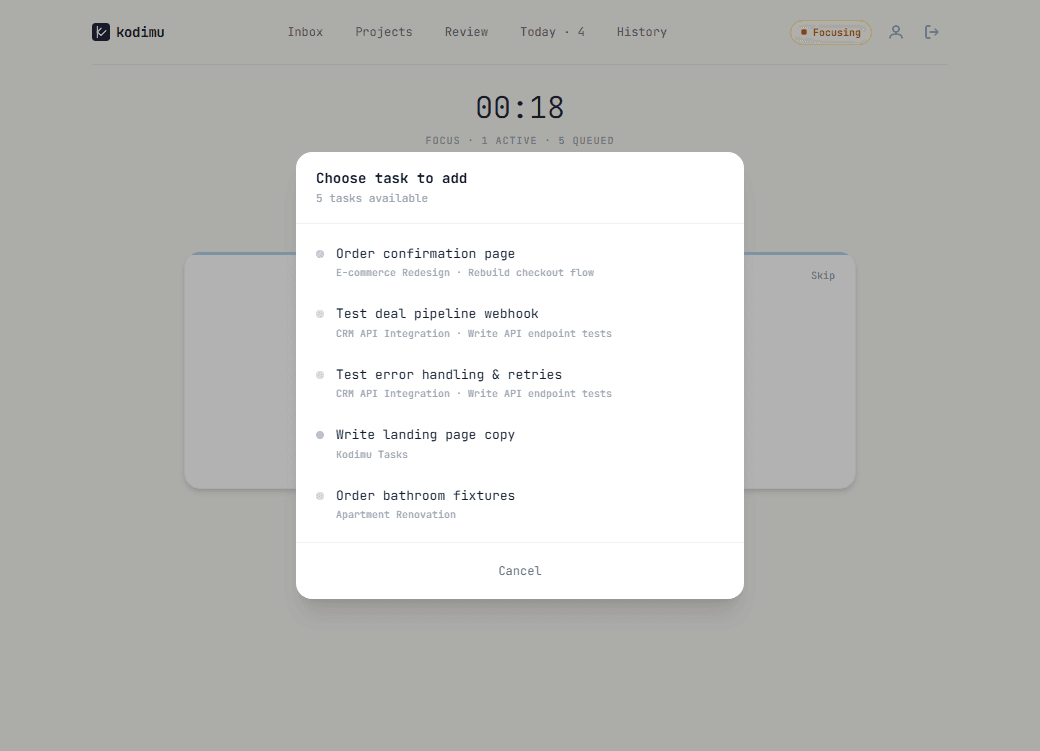
Tasks are listed with their project name and color for easy identification. Pick one to add it to your current session.
Multiple Active Tasks
You can work on multiple tasks in parallel. Each active task gets its own card with an independent timer.
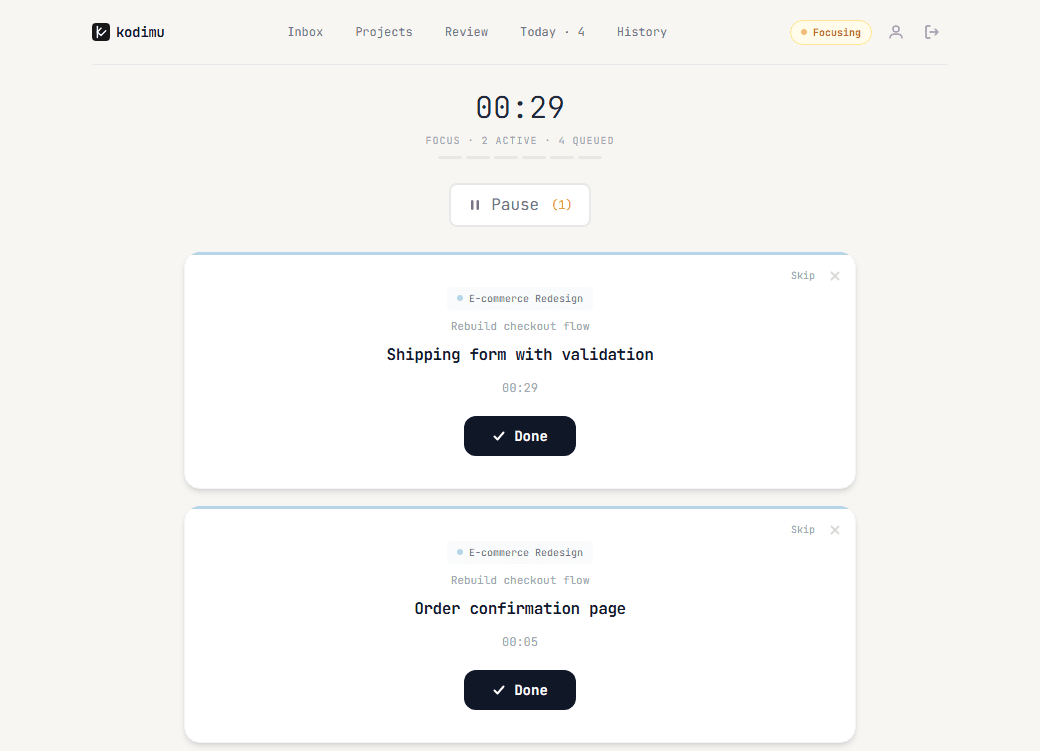
This is useful when you're context-switching between related tasks or waiting on something.
History
The History page is your completion log. It shows every task you've finished, grouped by day.
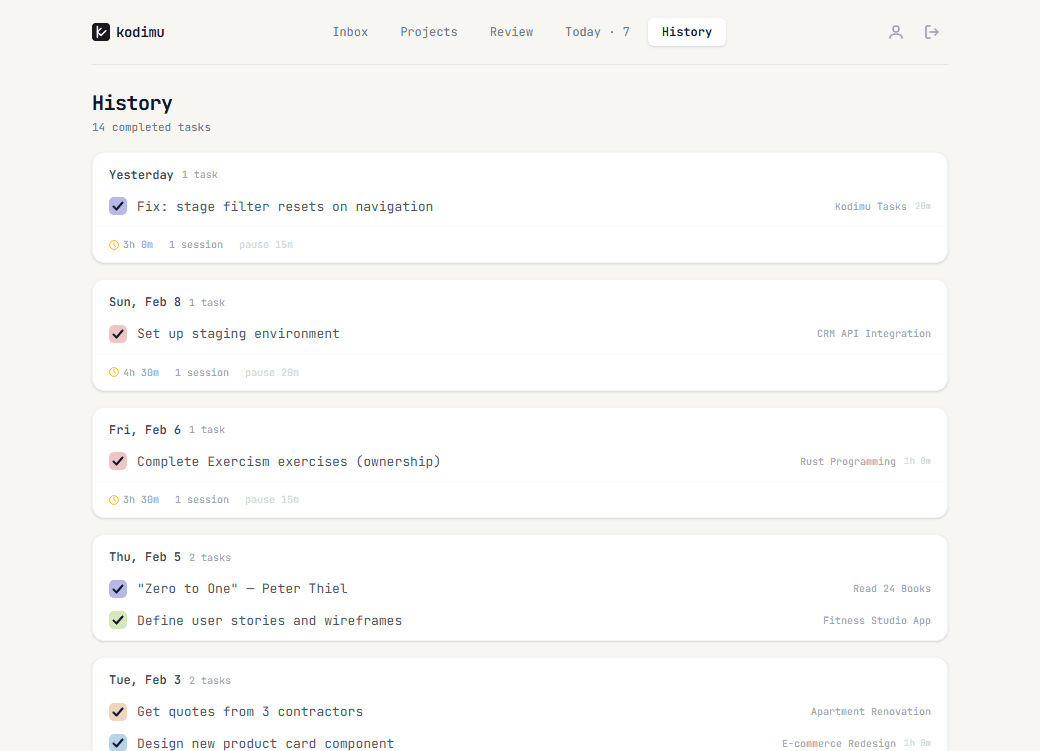
Each entry shows:
- The task name with a colored completion checkmark
- The project it belongs to
- Focus time spent and pause duration
- Number of sessions
Use History to review your productivity patterns, track how long tasks actually take, and see your progress over time.
Settings
Access Settings from the user icon in the top-right corner of the navigation bar.
Account
The Account tab lets you manage your profile.
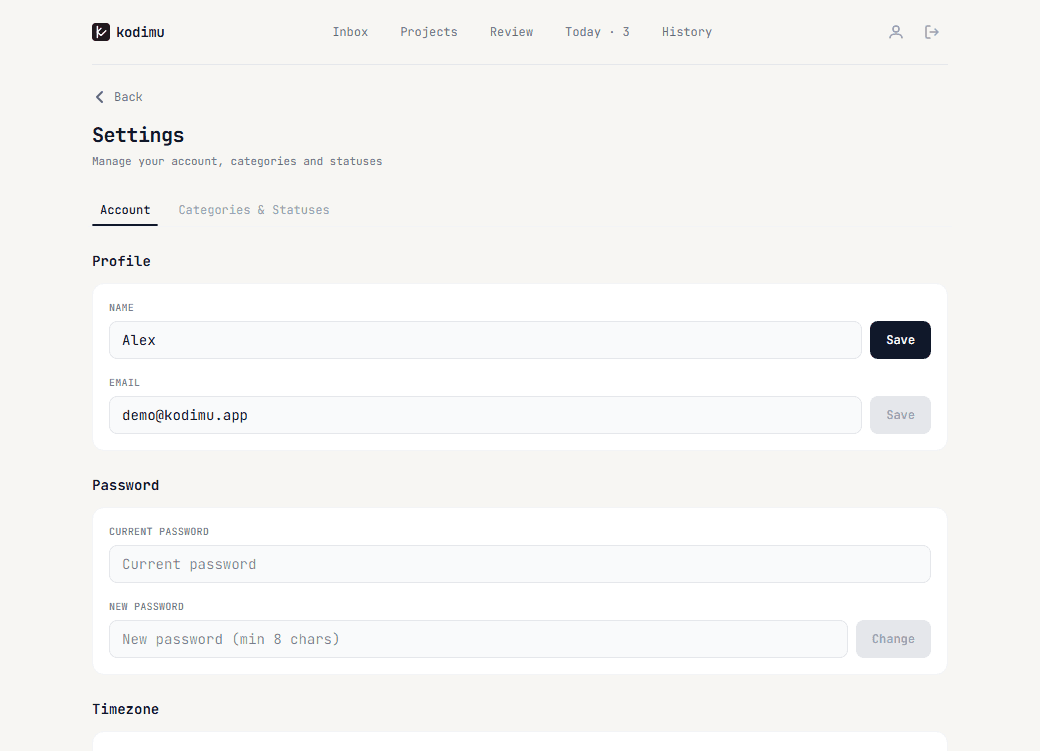
- Profile — change your display name and email
- Password — update your password (requires current password)
- Timezone — set your IANA timezone, used for "today" calculations. Can auto-detect from browser.
Categories & Statuses
The Categories & Statuses tab lets you customize how you organize projects.
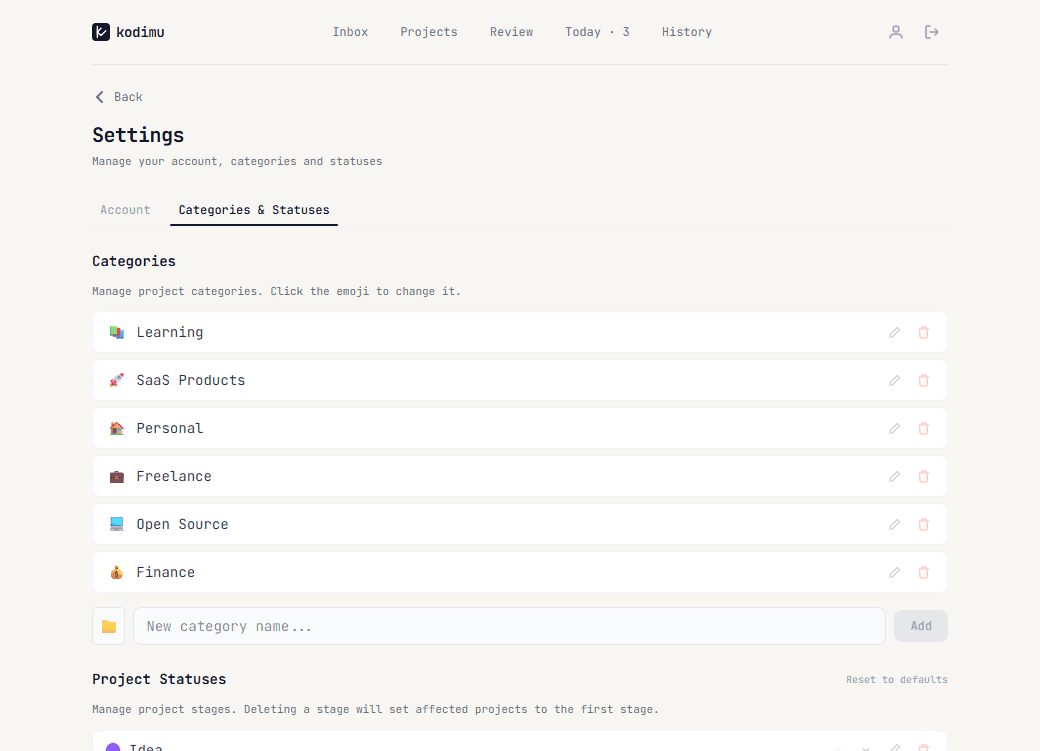
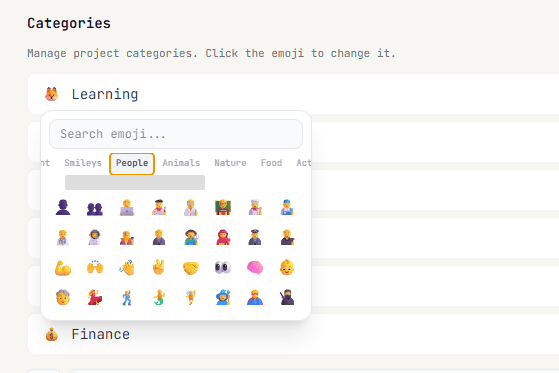
Categories — create groups for your projects (e.g., Learning, Freelance, Personal). Each category has a custom emoji icon. Click the emoji to open the picker and change it.
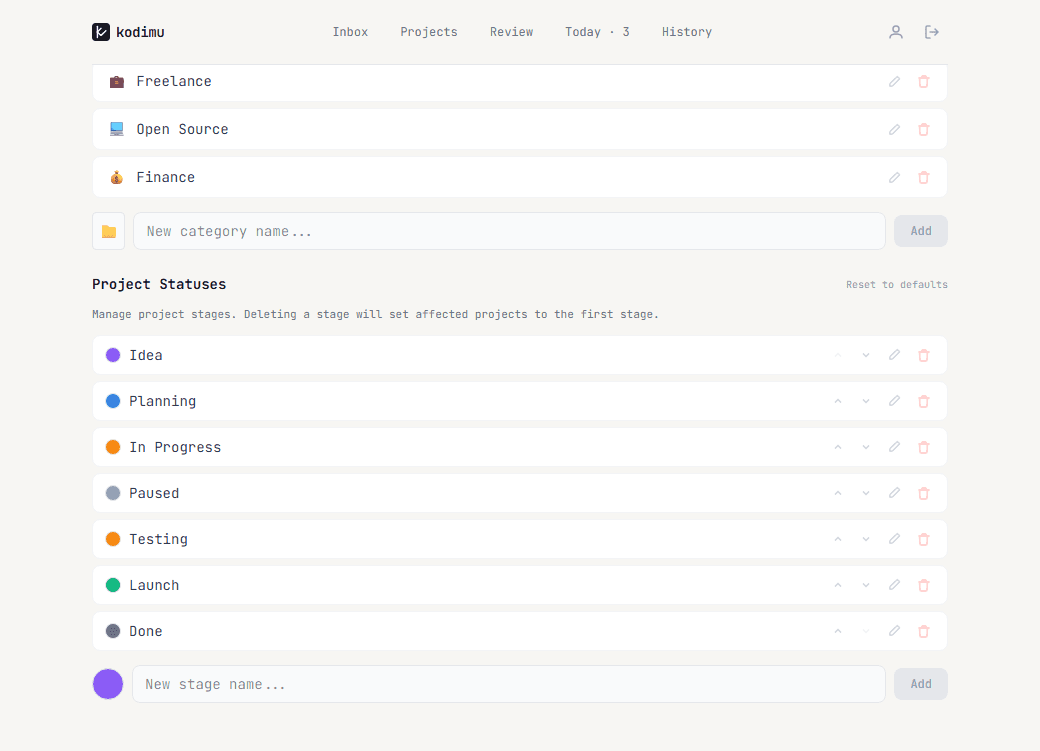
Project Statuses — define the stages your projects go through. Default stages are: Idea, Planning, In Progress, Paused, Testing, Launch, Done. You can add new stages, reorder them, rename them, or delete them.
Encryption
Kodimu uses end-to-end encryption (AES-256-GCM). Your task names, descriptions, and notes are encrypted in the browser before being sent to the server. Not even Kodimu can read your data.
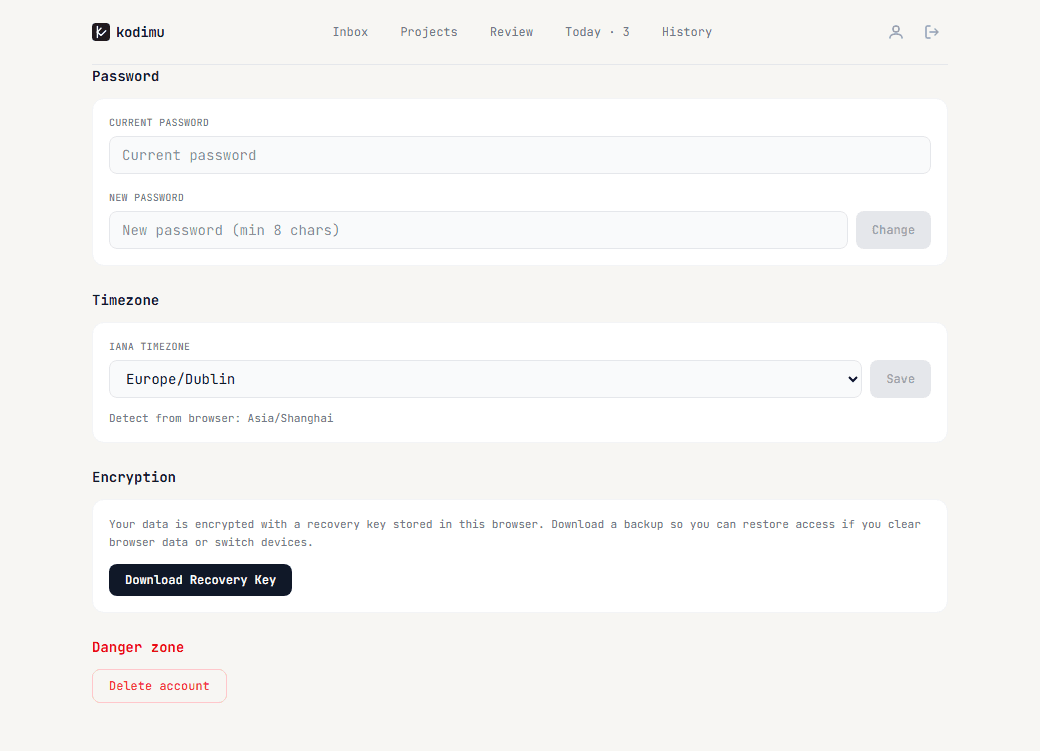
- Download Recovery Key — save your encryption key as a backup file. You'll need this if you clear browser data or switch devices.
- Danger zone — permanently delete your account and all data.
Quick Tips
- Capture fast, organize later — use Inbox for quick thoughts, then sort them into projects during Review.
- Use Bulk Add for project setup — paste a whole task breakdown at once instead of adding one by one.
- Review every morning — open the Review page, filter by category or stage, and pick today's tasks.
- Focus on one task — Focus Mode shows one task at a time to minimize distraction.
- Track pause reasons — write why you paused ("call", "lunch") to understand where your time goes.
- Download your Recovery Key — if you lose your browser data without it, your encrypted data is gone forever.
- Use project stages — move projects through Idea > Planning > In Progress > Launch to track progress at a glance.
- Star important tasks — priority badges (Urgent, Important) help you find critical work fast in Review.