
Kodimu offers two ways to add tasks to any project, plus an Inbox for things that don't have a project yet.
Quick Add
The default mode. Type a task name and press Enter. Simple and fast — one task at a time.
Bulk Add
Switch to the Bulk tab to add multiple tasks at once. Write one task per line. Lines starting with a dash (-) become subtasks of the task above them.
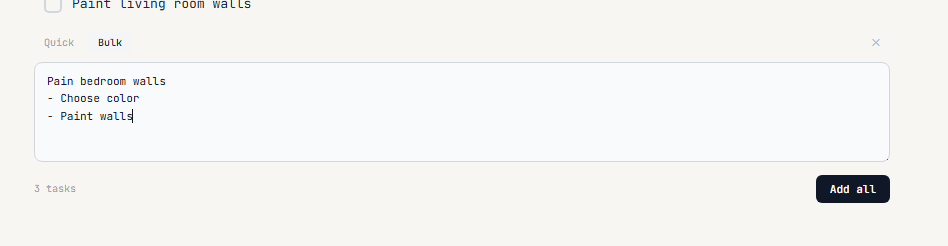
For example, typing:
Paint bedroom walls
- Choose color
- Paint walls
...creates one parent task with two subtasks:

Click Add all to create everything at once.
Subtasks & Priorities
Any task can hold subtasks — nested checkboxes that let you break a big piece of work into steps. Subtasks show up inline on the Today page and in Focus Mode, so you always see the parent task for context.
Mark a task as Priority, Important or Urgent. Priority badges are visible on the project page and can be used as a filter on the Review page to find critical work fast.
Inbox
The Inbox is your quick capture zone. When a thought or task comes to mind, dump it here — no need to decide which project it belongs to right away.
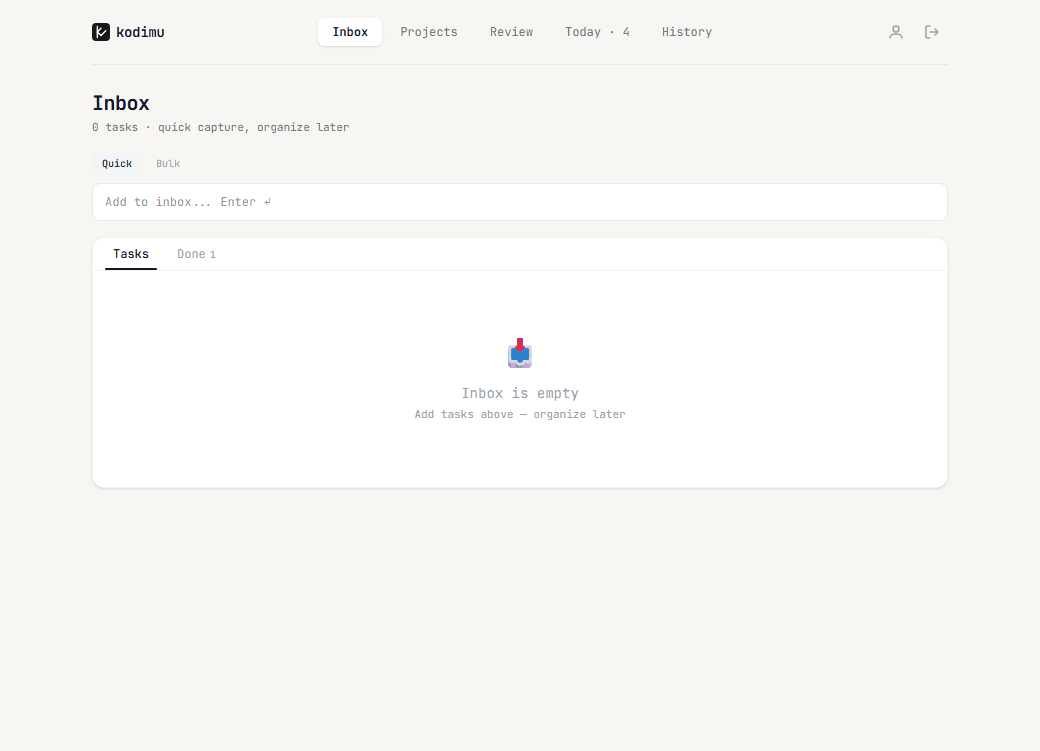
- Type in the input field and press Enter to add
- Both Quick and Bulk modes are available
- Later, organize inbox tasks into the right projects
The Inbox follows the GTD (Getting Things Done) principle: capture first, organize later. Inbox tasks also appear on the Review page, so nothing gets lost.